Airport App


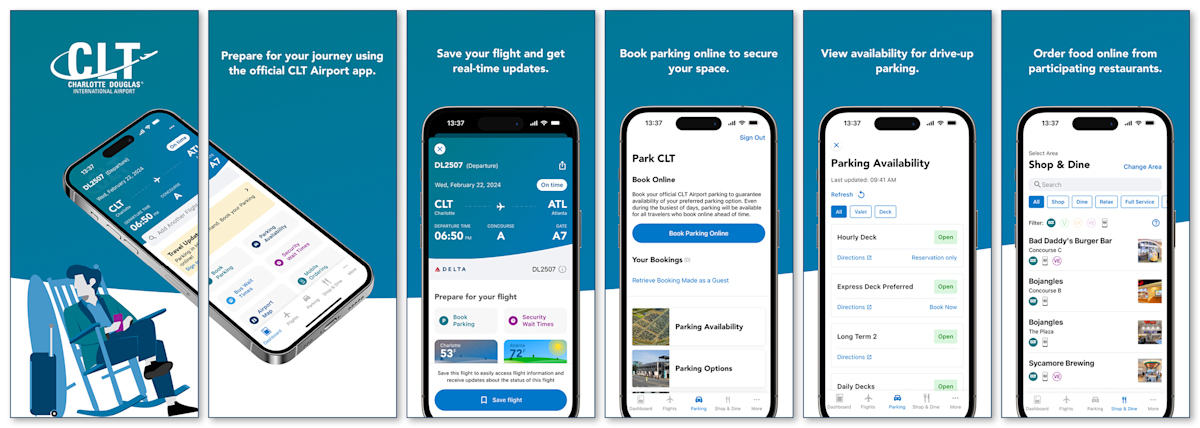
The Charlotte Douglas International Airport app makes your travel experience through CLT easier than ever before. Created with all phases of your journey in mind, the app gives you instant access to all the information you need during every step of your trip, from preparing for travel to boarding your flight.
Features:
• Book official CLT Airport parking to guarantee availability of your preferred parking option and explore Parking Availability.
• 48-Hour Flight Tracking with real-time flight status updates. Easily Search, Save and Share your flights to and from CLT. The app includes flight updates and information for all airlines serving CLT.
• Explore shopping, dining and relaxation amenities and order food from participating restaurants. Enjoy the flexibility of viewing all options or filtering by your preferences.
• Security and Bus Wait Times help you spend less time waiting.
• Indoor Navigation including turn-by-turn directions and accessibility options.
• Travel tips and frequently asked questions regarding travel through CLT, including: Airport Maps, Security, Accessibility, Mother’s Rooms and much more.
Frequently Asked CLT Airport App and Account Questions
Yes, the free CLT Airport app is available for everyone to use and includes a variety of features and helpful resources. If you’d like to book parking, you can log in or check out as a guest.
An account is only required for earning Royalty Program rewards points or managing previous bookings.
The Royalty Program allows users to enjoy the perks of being a loyal airport parking customer. Customers can earn rewards points when booking parking through ParkCLT.com or the official CLT Airport app.
You can update your email address through both the CLT Airport app and website:
• In the app: Log in to your account, then go to Account > Modify Details > Change Email Address, then tap Save.
• On the website: Log in, then click your name in the top right corner or select My CLT Account > Account Details. Enter your new email address and click Save.
Important Note: Changing the email address used to create your CLT account will be treated as a cancellation or deactivation. Points will not be transferred between CLT accounts.
You can reset your password using any of the following options:
• In the app: Log in to your account, then go to Account > Change Password. Enter your current and new password, then tap Save New Password.
• On the website: Log in, then click your name in the top right corner (Hi, [Name]) or select My CLT Account > Change Password. Enter your current and new password, then click Set New Password.
• If you can’t log in: Select Sign In > Forgot Password, enter your email address, and click Send Recovery Link.
If you don’t receive the reset email:
• Confirm your email address is correct
• Check your junk/spam folder
• Clear your app or browser cache and try again
• Tap Resend if available
If it still doesn’t work, please submit a request through the CLT Feedback Form and include your full name, email address, and any error messages so our team can assist you.
If your email is already registered, try resetting your password using the Forgot Password link. If you still can’t access your account, submit an inquiry through the CLT Feedback Form with your name, email address, and a description of the issue so our team can investigate and help you regain access.
You may modify or cancel parking bookings before the start of your reservation by logging into your account on the Parking page on the CLT Airport website or app, or by clicking on the “Modify booking as Guest” link. You will need to know your booking reference number and email address in order to modify or cancel your booking. Modifications are subject to current pricing based on availability.
You can update your saved vehicle information through both the CLT Airport app and website:
• In the app: Log in to your account, then go to Account > My Vehicles. From there, you can add or remove vehicles as needed.
• On the website: Log in, then click your name in the top-right corner (Hi, [Name]) or select My CLT Account > My Vehicle. Choose to add or remove vehicles as needed.
Be sure to enter your license plate exactly as shown on your vehicle registration — without dashes or spaces.
The CLT Airport app does not allow special characters (such as dashes or spaces) when entering a license plate number. This follows the same format used on vehicle registrations, where license plate numbers are listed without symbols. You’ll also see this noted in the help text during entry: “Please enter license plate number as shown on vehicle registration.”
You can remove or update your saved payment method when making a new parking booking.
In the app: When you’re ready to book, tap Book & Pay to reach the Payment screen. From there, you can:
• Tap Manage, then use the red circle (–) icon to remove a saved card. You’ll then be prompted to enter a new payment type and can check “Save Credit Card” to keep it on file.
• Or, tap Add New Credit Card, enter your details, and check “Save New Credit Card” to store the new card before removing the old one.
On the website: During checkout, click Book & Pay to reach the Payment screen. Hover over your saved card and click the delete (trash can) icon to remove it, or select Add New Credit Card to add another payment method.
Be sure to check “Save Credit Card” if you’d like to keep the new card on file for future bookings.
Important Note: Payment methods can only be managed during the booking process — they cannot be edited separately within your account.
At this time, there isn’t a feature to manually remove or clear past reservations from the app. Expired bookings will remain visible in your account for reference but will not affect your ability to make new reservations.
If you're experiencing technical issues with the app, please submit an inquiry through the CLT Feedback Form. Include your name, email address, a brief description of the issue, and any supporting screenshots that may help our team review and assist you more quickly.
You can permanently delete your CLT Airport account at any time through the website or mobile app.
Visit the Delete Your CLT Airport Account page for step-by-step instructions and additional information about what happens after your account is deleted.