
Aplicación del aeropuerto
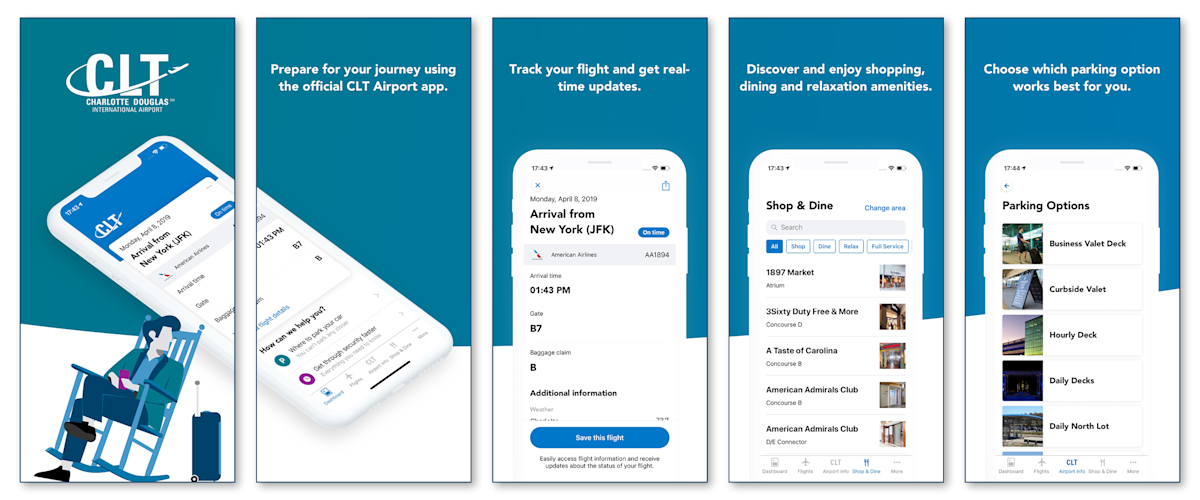
La aplicación del Aeropuerto Internacional Charlotte Douglas hace que su experiencia de viaje en CLT sea más sencilla que nunca. Creada teniendo en cuenta todas las fases de su recorrido, la aplicación le da acceso instantáneo a toda la información que necesita en cada paso de su viaje, desde prepararse para el viaje hasta abordar su vuelo.
Características:
• Reserve su estacionamiento oficial en el aeropuerto de CLT para asegurarse de la disponibilidad de la opción de estacionamiento que prefiera.
• Rastreo del vuelo de 48 horas con información actualizada del estado del vuelo en tiempo real. Busque, guarde y comparta fácilmente sus vuelos a y desde CLT. La aplicación incluye información actualizada de vuelos e información de todas las aerolíneas que funcionan en CLT.
• Servicios de compras, comida y relajación. Disfrute la flexibilidad de ver todas las opciones o de filtrar según sus preferencias.
• La seguridad y los tiempos de espera de los autobuses lo ayudarán a pasar menos tiempo esperando.
• Navegación interior incluyendo instrucciones detalladas y opciones de accesibilidad.
• Consejos para viajar y preguntas frecuentes sobre el viaje por CLT, incluyendo: Mapas del aeropuerto, seguridad, accesibilidad, salas para madres y mucho más.
Frequently Asked CLT Airport App and Account Questions
Yes, the free CLT Airport app is available for everyone to use and includes a variety of features and helpful resources. If you’d like to book parking, you can log in or check out as a guest.
An account is only required for earning Royalty Program rewards points or managing previous bookings.
The Royalty Program allows users to enjoy the perks of being a loyal airport parking customer. Customers can earn rewards points when booking parking through ParkCLT.com or the official CLT Airport app.
You can update your email address through both the CLT Airport app and website:
• In the app: Log in to your account, then go to Account > Modify Details > Change Email Address, then tap Save.
• On the website: Log in, then click your name in the top right corner or select My CLT Account > Account Details. Enter your new email address and click Save.
Important Note: Changing the email address used to create your CLT account will be treated as a cancellation or deactivation. Points will not be transferred between CLT accounts.
You can reset your password using any of the following options:
• In the app: Log in to your account, then go to Account > Change Password. Enter your current and new password, then tap Save New Password.
• On the website: Log in, then click your name in the top right corner (Hi, [Name]) or select My CLT Account > Change Password. Enter your current and new password, then click Set New Password.
• If you can’t log in: Select Sign In > Forgot Password, enter your email address, and click Send Recovery Link.
If you don’t receive the reset email:
• Confirm your email address is correct
• Check your junk/spam folder
• Clear your app or browser cache and try again
• Tap Resend if available
If it still doesn’t work, please submit a request through the CLT Feedback Form and include your full name, email address, and any error messages so our team can assist you.
If your email is already registered, try resetting your password using the Forgot Password link. If you still can’t access your account, submit an inquiry through the CLT Feedback Form with your name, email address, and a description of the issue so our team can investigate and help you regain access.
You may modify or cancel parking bookings before the start of your reservation by logging into your account on the Parking page on the CLT Airport website or app, or by clicking on the “Modify booking as Guest” link. You will need to know your booking reference number and email address in order to modify or cancel your booking. Modifications are subject to current pricing based on availability.
You can update your saved vehicle information through both the CLT Airport app and website:
• In the app: Log in to your account, then go to Account > My Vehicles. From there, you can add or remove vehicles as needed.
• On the website: Log in, then click your name in the top-right corner (Hi, [Name]) or select My CLT Account > My Vehicle. Choose to add or remove vehicles as needed.
Be sure to enter your license plate exactly as shown on your vehicle registration — without dashes or spaces.
The CLT Airport app does not allow special characters (such as dashes or spaces) when entering a license plate number. This follows the same format used on vehicle registrations, where license plate numbers are listed without symbols. You’ll also see this noted in the help text during entry: “Please enter license plate number as shown on vehicle registration.”
You can remove or update your saved payment method when making a new parking booking.
In the app: When you’re ready to book, tap Book & Pay to reach the Payment screen. From there, you can:
• Tap Manage, then use the red circle (–) icon to remove a saved card. You’ll then be prompted to enter a new payment type and can check “Save Credit Card” to keep it on file.
• Or, tap Add New Credit Card, enter your details, and check “Save New Credit Card” to store the new card before removing the old one.
On the website: During checkout, click Book & Pay to reach the Payment screen. Hover over your saved card and click the delete (trash can) icon to remove it, or select Add New Credit Card to add another payment method.
Be sure to check “Save Credit Card” if you’d like to keep the new card on file for future bookings.
Important Note: Payment methods can only be managed during the booking process — they cannot be edited separately within your account.
At this time, there isn’t a feature to manually remove or clear past reservations from the app. Expired bookings will remain visible in your account for reference but will not affect your ability to make new reservations.
If you're experiencing technical issues with the app, please submit an inquiry through the CLT Feedback Form. Include your name, email address, a brief description of the issue, and any supporting screenshots that may help our team review and assist you more quickly.